
Inserting YouTube Clips and Google Maps
Log on to your website and click the green "Edit" button for the page you wish to edit. Click here for more information about how to do this.
Inserting media from external websites (such as YouTube) generally follows a very similar procedure. Firstly, locate the content you wish to embed and look for the "Share" or "Embed" option on that website. Follow instructions to configure the content as you wish. The website should provide "HTML code" that you can copy for use on your website. Once you have this code in the clipboard return to the Page Editor for the relevant page in your website, and position your cursor where you wish the video clip or other media to appear.
Click on the following icon.
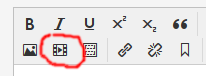
or if using our legacy platform:

Then using the Embed Media dialogue below paste in the embed code from the clipboard

This will insert the video clip or other media into the position marked by your cursor on your own web page. In this example we are copying in the embed code for a YouTube video
The following descriptions are specific instructions for the YouTube and GoogleMaps websites.
YouTube
To insert a YouTube video, navigate to the video you would like to embed on the YouTube website and select the "Share" option found just below the main video.

From here select "embed" and copy the embed HTML code into your clipboard once you have selected from the various options available, such as image size and border.

Once you have copied the embed code, return to the Page Editor for the relevant page on your website and insert the HTML code using the Embed Media button on the toolbar:
Here is the Video as it would appear in your own site:
Google Maps
The process is similar to the above instructions, but the share button is a little harder to find. First navigate to Google Maps in a separate window. Then use the normal map controls to locate the map with the co-ordinates and scale that you require. Then click the small (and I mean small) "gear" icon located at the bottom of the Google Maps window.
You should see a menu appear as indicated by the blue arrow in the image below:

Select the "Share and embed map" option, and then "Embed Map" to obtain the embed HTML code. Copy and paste this code into the Embed Media dialogue as explained above.

Here is the map as it would appear on your own web page: